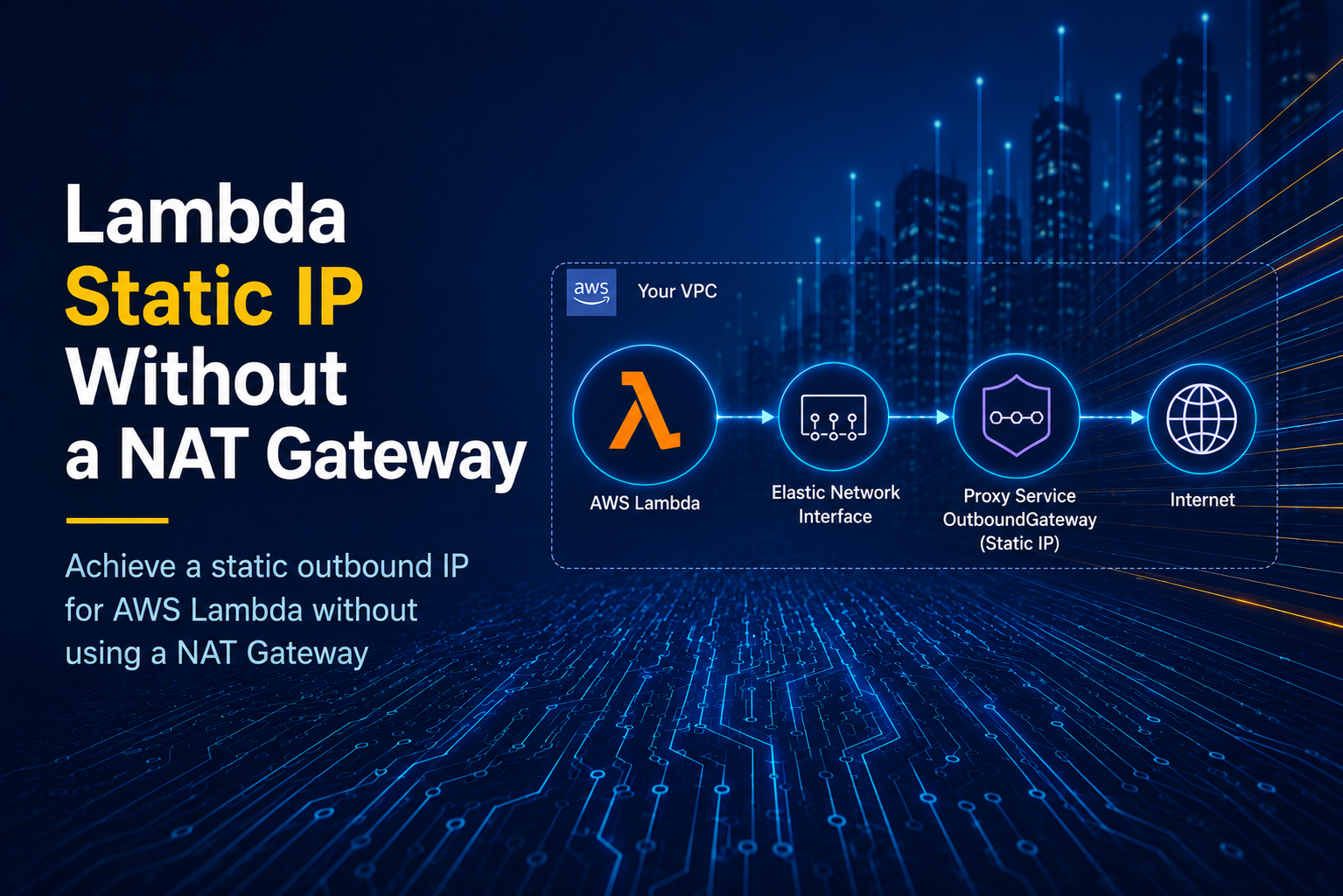
Lambda Static IP Without a NAT Gateway
Table of Contents
- Why Setup Static IP For Lambda Without a NAT Gateway
- What We'll Demonstrate
- Creating The Lambda Function
- Lambda Function Without Static IP
- Lambda Function With Static IP Using OutboundGateway
- Try OutboundGateway For A Static IP Today
AWS Lambda functions allow developers to conveniently deploy backend code without maintaining any servers. They work great in many scenarios, especially those where you need just one backend function in your stack, such as handling a form fill on your otherwise static website. However, there are some restrictions with Lambda functions if your use case involves anything that needs your backend to have a static IP address.
Lambda functions provide no guarantee that they will run with the same IP address every time, and they typically change every hour or so. Sometimes you might need your Lambda function to have a static IP that needs to be allowlisted on a partner API service. Or you may need an IP located in the EU to comply with data residency requirements. In these situations you need to use some workarounds. One way to do this, as per AWS documentation is to set up a NAT gateway. Another way is to use a static outbound IP provider such as OutboundGateway that gives your Lambda function a pair of fixed IPs for outbound communication.
In this guide, you will learn how to use the latter method to set up static IPs for your Lambda function, which works without a NAT gateway. Using a NAT gateway as per the AWS guide looks pretty cumbersome with setting up VPCs, subnets, and NAT gateways. Apart from the increased cost, maintaining this set of AWS resources also beats the convenience that made Lambda functions an attractive option in the first place. Using the OutboundGateway service on the other hand, as you will see, is literally just setting two environment variables on your Lambda function runtime.
Follow along to see how this works.
Why Setup Static IP For Lambda Without a NAT Gateway
Setting up static IP for an AWS Lambda using a NAT gateway involves a complicated, multistep process, involving creating and configuring the following resources as per the AWS guide:
- A new VPC
- Two public subnets
- Two private subnets
- Two Elastic IP addresses
- An internet gateway
- Two NAT Gateways
- Route tables for public and private subnets
- Finally the Lambda function itself
So here's the problem. Each of these resources will have a cost associated with running it. And the bigger problem is that an average backend developer may not even have heard about half of these terms before. Therefore, it becomes daunting. On the other hand, using OutboundGateway to get a pair of static IPs is just adding some environment variables to your Lambda function runtime:
HTTPS_PROXY = https://your-username:your-password@eu-01.outboundgateway.com:8443
NODE_OPTIONS = --use-env-proxy
This makes it much easier to maintain, and the pricing for this service starts at just €19/month.
What We'll Demonstrate
In this guide, we'll create an AWS Lambda function that calls an external service ipify.org to identify its outbound IP address and return that as the response. Using this, we'll demonstrate that the IP address of the function changes after a certain period of time. Next, we'll enable the OutboundGateway service on our Lambda function and show that the IP address is always one of the two assigned static IPs across multiple API calls while using the service.
This guide will use NodeJS but the service works for any programming language supported by AWS Lambda. If you'd like to follow along you will need an OutboundGateway account. If you don't have one yet you can get a free trial by contacting us. You will also need an AWS account (free tier works for running Lambda functions).
Creating The Lambda Function
The steps for creating the Lambda function for this demonstration are below:
- Open the AWS Lambda dashboard from your AWS console, and click on "Create function". You'll see the following setup page.
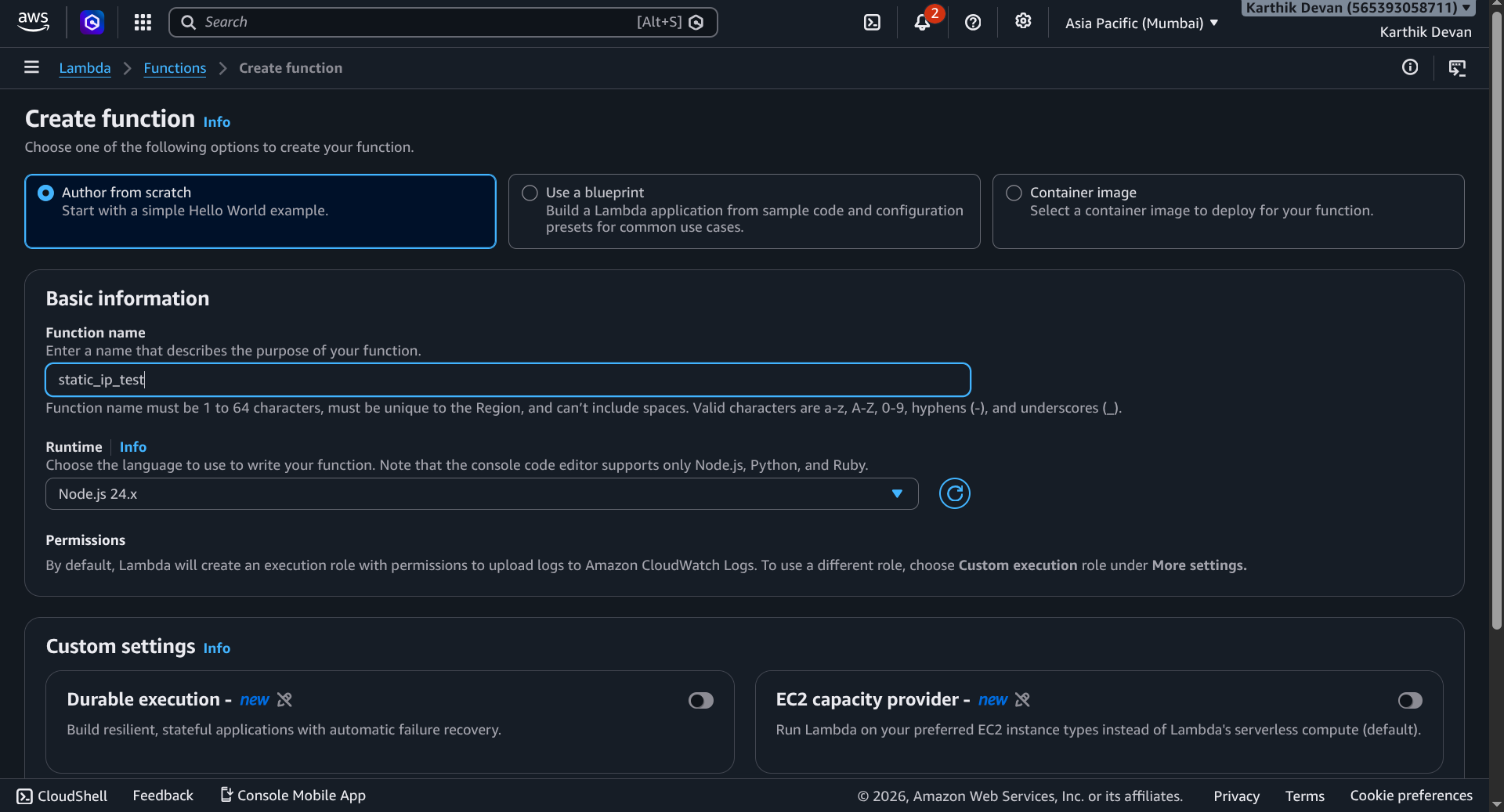
- Use the "Author from scratch" option, type in a name (say static_ip_test), leave the runtime at default (Node.js 24.x).
- Scroll down and click on "Create Function".
- After a few seconds, your function will be created.
- Next, add a trigger. When asked for source select "API Gateway" and then select "HTTP API" and finally click "Add".
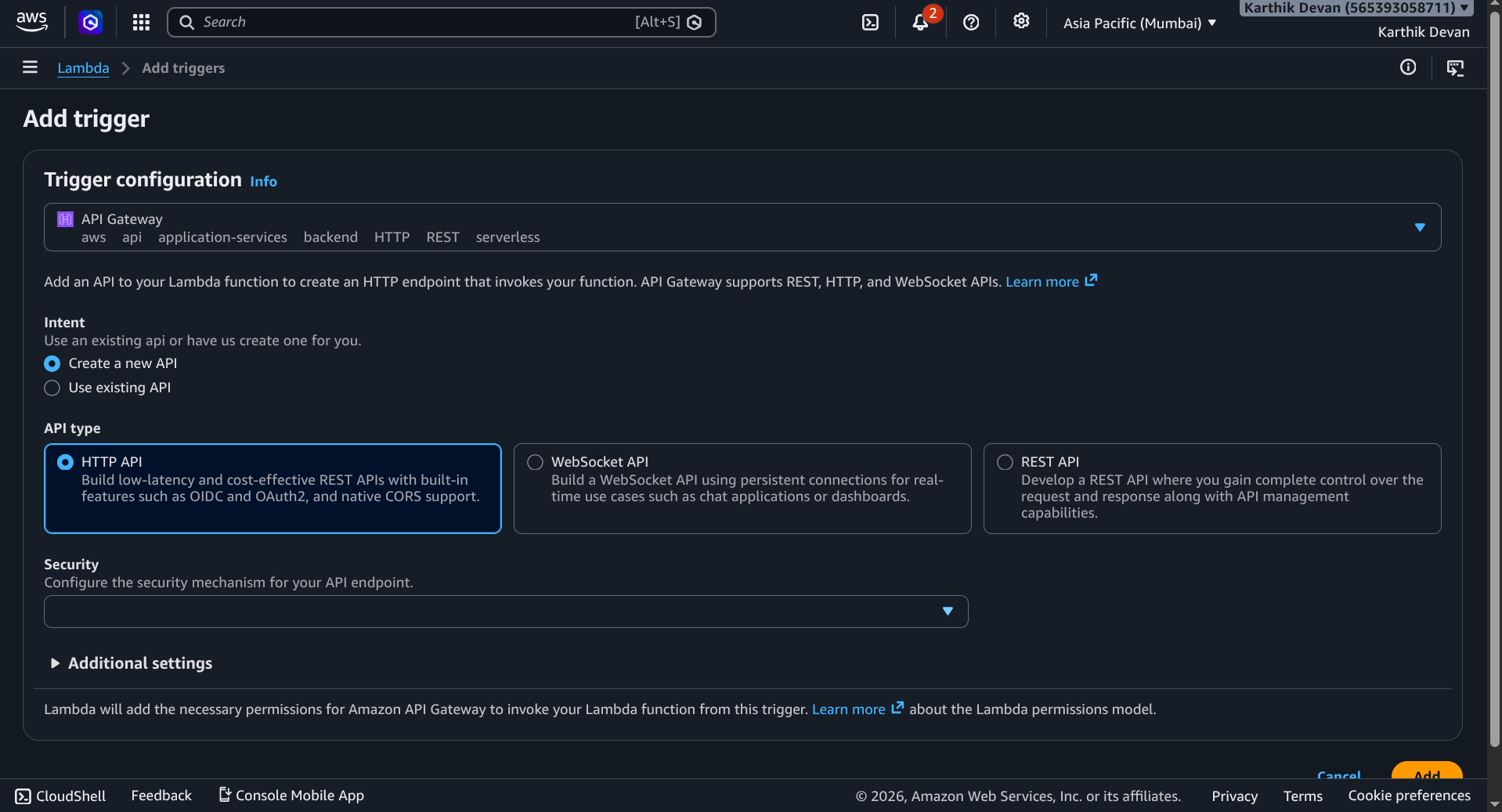
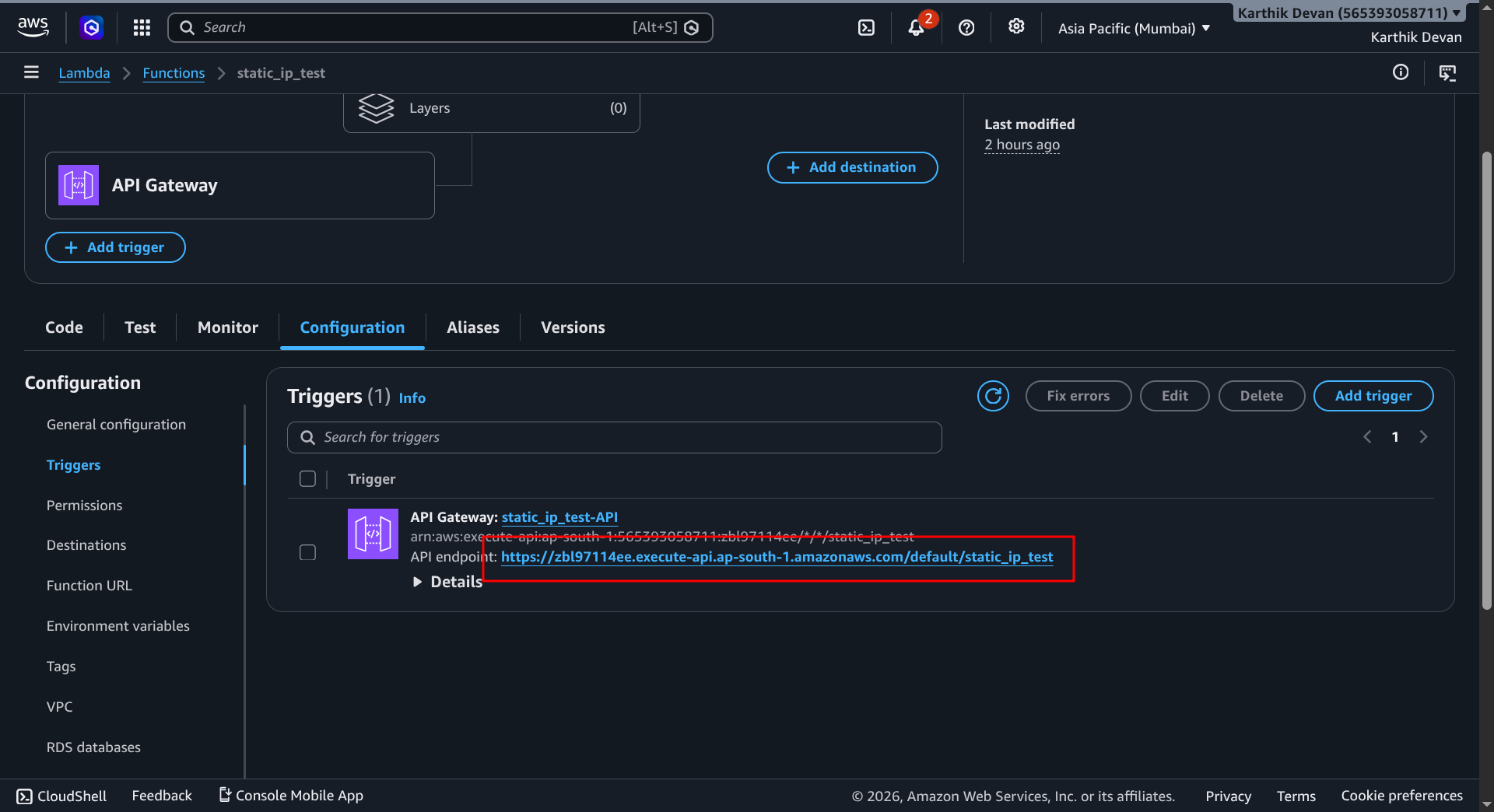
- This will give you one simple URL to call the Lambda function, which you can use even from the browser. You can copy this URL from the "Configuration" section as shown below.
Lambda Function Without Static IP
To run the Lambda function without a static IP and see how the IP address changes with time, paste the following code into the code editor on AWS Lambda function page, and deploy it.
export const handler = async (event) => {
  const ipResult = await fetch('<https://api.ipify.org>');
  const ip = await ipResult.text();

  const response = {
    statusCode: 200,
    body: `Your Lambda IP is ${ip}`,
  };
  return response;
};
Now, paste the Lambda function URL into the address bar of your browser. It will return the IP address that the Lambda function used for making the outbound request to api.ipify.org. In our case, we got:
Your Lambda IP is 13.202.43.63
Running the function again 2 hours later gave us the following output:
Your Lambda IP is 3.109.212.176
You can see that the IP addresses in either case are very different. This demonstrates that the AWS Lambda IPs are ephemeral and change within hours. They require additional setup to keep their outbound IPs static.
Lambda Function With Static IP Using OutboundGateway
Now let's look at how to set up the pair of static IPs for the Lambda function using OutboundGateway. For this, you can setup a proxy using your OutboundGateway credentials. Next, you need to set up two environment variables for the Lambda function from the AWS console. This can be done under the "Environment variables" section of the "Configuration". The two environment variables are:
- HTTPS_PROXY = https://your-username:your-password@eu-01.outboundgateway.com
- NODE_OPTIONS = --use-env-proxy
The screenshot below shows the two environment variables set up on the AWS Lambda function dashboard:
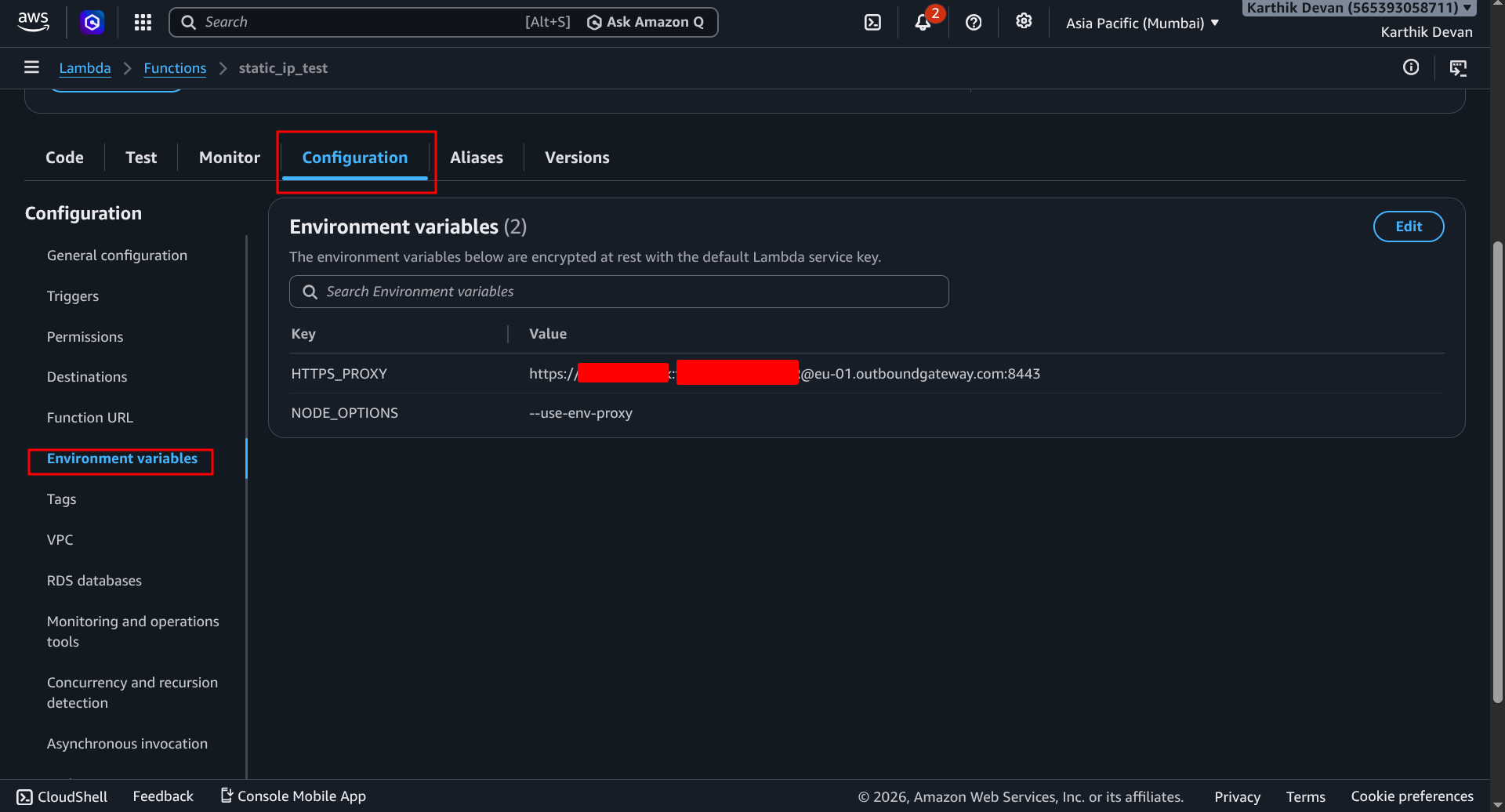
The HTTPS_PROXY specifies the OutboundGateway proxy URL for NodeJS to use. This also contains the username and password for your account, which you can get from the dashboard. The --use-env-proxy option for the NODE_OPTIONS variable instructs the runtime to use the proxy URL that we have specified.
NOTE: Setting the HTTPS_PROXY environment variable within the lambda function code did not work for us on NodeJS 24.x environment, so we set it on the dashboard itself. This is also a good security practice, as it avoids your username and password from getting into the code.
Now run the function using the URL. We got the following output:
Your Lambda IP is XX.XX.XX.XX
Two hours later we still got the same output:
Your Lambda IP is XX.XX.XX.XX
You can run the function after a few days and you will still get the same output. Sometimes you might get another IP because OutboundGateway provides 2 IPs to be highly available. Finally, you can also lookup the geolocation of this IP 'XX.XX.XX.XX', and it will turn out to be in Nuremberg, Germany. This is well within the EU, though this particular AWS Lambda function was running outside the EU. To summarize, if you need IP allowlisting for any external service, you can submit the two IPs you see on your OutboundGateway dashboard.
Your Lambda function will always make outbound API calls with either one of them.
Try OutboundGateway For A Static IP Today
As we demonstrated in this guide, setting up a pair of static IPs for your Lambda function using OutboundGateway is just adding two environment variables to your function runtime. This is a much simpler alternative to configuring a NAT gateway which can quickly get cumbersome and confusing. We also provide a GDPR conscious setup and EU-hosted infrastructure for easy compliance if you are building for the EU.
Built with ❤️ for EU businesses who care about privacy and sovereignty.
Frequently Asked Questions (FAQs)
Does AWS Lambda have a static IP?
No, AWS Lambda functions do not have a static IP address by default. The outbound IP addresses are ephemeral and change periodically. To get a static IP, you must route traffic through a NAT Gateway with an Elastic IP, or use a third-party static outbound proxy like OutboundGateway.
How much does a NAT gateway cost?
AWS charges for NAT Gateways on an hourly basis (approx. $0.045/hour) plus a per-gigabyte data processing fee. Even with minimal usage, a NAT Gateway will easily cost over $30+ per month, making it an expensive option for simple Lambda functions compared to proxy alternatives.
Can I use a proxy with AWS Lambda?
Yes, you can route your Lambda function's outbound traffic through a proxy. By setting standard environment variables like HTTPS_PROXY in your Lambda configuration, you can force the runtime to route outbound requests through an external proxy server to mask your IP or ensure a static outbound address.