Table of Contents
- Background: Heroku's sustaining engineering model
- Why your outbound IP configuration needs to change
- Migrating to OutboundGateway
- Pointing your app at the new proxy
- Tearing down the Heroku static IP add-on
Background: Heroku's sustaining engineering model
In 2026, Heroku famously announced that they were entering a so-called "sustaining engineering model" (read the update), which means they won't be releasing new features or advancing their platform in any meaningful way.
What's even more important is that they won't be taking on any new enterprise clients. That is a big deal, since over the last decade Heroku pioneered the PaaS (Platform-as-a-Service) model and gave developers an easy way of managing infrastructure for their apps.
Most of the tech community took it as a signal that it would be best to look for alternatives.
Why your outbound IP configuration needs to change
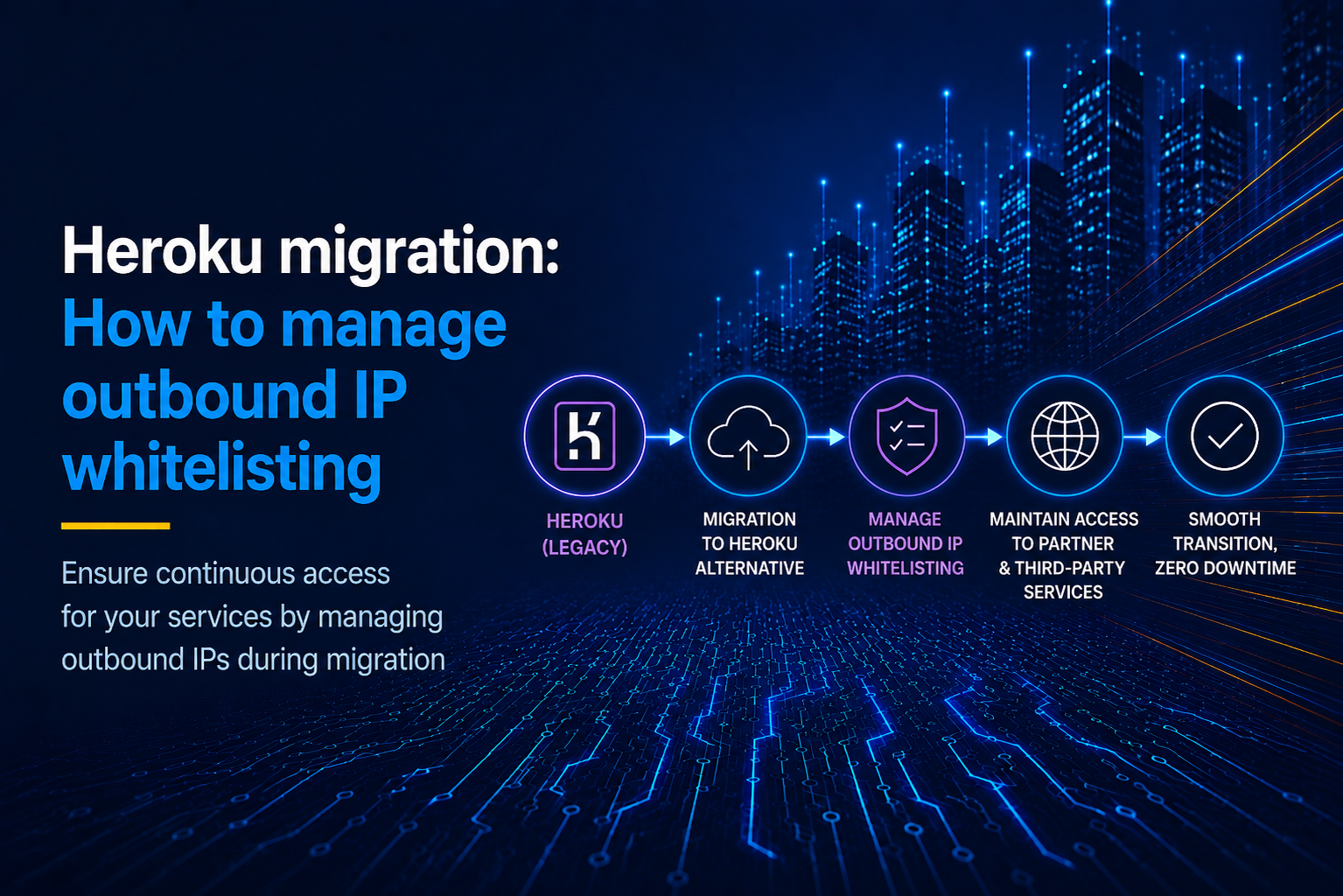
Since we at OutboundGateway are all about EU static IPs, we're going to talk about how you can migrate your current Heroku static IP setup to an EU-compliant one.
Heroku runs their infrastructure on AWS, whereas our infrastructure uses Hetzner, so you will need to update your current IP configurations. That isn't as big a problem as you might think.
Migrating to OutboundGateway
1. Sign up at OutboundGateway
Choose the plan that fits your use case. We currently offer the "Starter", "Business", and "Enterprise" plans. Only the "Enterprise" plan gives you dedicated IPs, so if you need one, just send us a quick email at support@outboundgateway.com and we'll spin them up on demand.
2. Copy your new IP addresses
In your OutboundGateway dashboard, you'll see your new IP addresses (you get two IPs, mainly for high availability). Copy them and send them to any clients or partners that are currently using your old IPs.
Pointing your app at the new proxy
On Heroku, your static IP add-on (typically QuotaGuard or Fixie) worked by setting a proxy URL in your app's environment. With OutboundGateway the same pattern applies: set HTTPS_PROXY to your OutboundGateway connection string, and a standard HTTP client picks it up automatically.
You can find your username and password in the OutboundGateway dashboard:
export HTTPS_PROXY=https://<username>:<password>@eu-01.outboundgateway.com:8443
export HTTP_PROXY=https://<username>:<password>@eu-01.outboundgateway.com:8443
Here is a concrete Python example using requests, which reads HTTPS_PROXY from the environment automatically:
import os
import requests

# requests honours HTTPS_PROXY from the environment automatically
# no explicit proxy configuration needed
response = requests.get(
    'https://outboundgateway.com/ip/',
    timeout=30
)

print(f"Status: {response.status_code}")
Tearing down the Heroku static IP add-on
Once your app is running through OutboundGateway and you've confirmed the new IPs are whitelisted with your partners, you can remove the old add-on from Heroku. Both QuotaGuard and Fixie are standard Heroku add-ons, so the teardown is a single CLI command:
heroku addons:destroy <addon-name> -a <your-app-name>
This destroys the add-on and its associated configuration, and it cannot be undone. Make sure your app is no longer routing through the old proxy before you run it, otherwise outbound requests will start failing immediately once the static IP endpoints are deprovisioned.
After that, your static outbound IP migration from Heroku is complete. You can start a free trial on OutboundGateway anytime.
Frequently Asked Questions (FAQs)
Why do I need to change my IPs when migrating from Heroku?
Heroku runs on AWS infrastructure, so its outbound IPs come from the AWS address ranges. OutboundGateway runs on Hetzner in the EU data centres, so the IPs are different. Any client, partner, or API that had your old Heroku IPs on an allowlist needs to be updated with the new OutboundGateway addresses so your outbound traffic keeps passing their checks.
Do I get a dedicated IP with OutboundGateway?
Yes, on the "Enterprise" plan. The "Starter" and "Business" plans give you two shared static IPs (with high-availability failover). If you need a fully dedicated address that only your traffic uses, upgrade to "Enterprise" or email support@outboundgateway.com and we'll set it up on demand.
Can I cancel my Heroku plan before switching the IPs?
We don't recommend it. Set up your OutboundGateway proxy first, share the new IP addresses with any partners who rely on IP allowlisting, and confirm that the outbound traffic is flowing correctly. Only then run heroku addons:destroy to remove the old add-on, so there's no gap where your outbound requests get blocked.